OpenClaw + Google Workspace CLI:构建管理 Gmail、文档与课堂的 AI 智能体

已更新:4月26日
别再只是和 AI 聊天了——开始构建一个真正能干活的智能体吧。在本教程中,我们将强大的 OpenClaw 框架与全新的 Google Workspace CLI 集成,创建一个完全自主的办公助手。我们不仅限于简单的文本生成,还将展示如何为您的 AI 智能体安装“双手”,让它能够跨 Gmail、云端硬盘、文档和 Google Classroom 管理您的职业生活。
⚠️ 注意:Google Workspace CLI 是一个开源项目,并非 Google 官方支持的产品。

Watch the full video tutorial here:
💡 提示: 本教程视频已配有 中文音轨。如需收听,请前往 YouTube 网站 播放,并在播放器设置(齿轮图标)中选择“音频(Audio track) -> 中文(Chinese)”。
夯实 OpenClaw 基础
在执行 Google Workspace 集成之前,您需要先运行起云端环境和智能体。如果您尚未设置基础架构,强烈建议从我们的基础教程开始:
掌握了这些核心概念后,您就可以将 OpenClaw 连接到 Google Workspace 了!

理解架构:双账号策略
为了确保自动化流程的安全,我们将工作流拆分为两个账号:
开发者账号 (Developer Account):用于设置 Google Cloud 项目并生成 "Client Secret"(应用程序的身份证)。
用户账号 (User Account):用于授权实际访问 Workspace 数据。
这种分离确保了您的智能体仅能访问特定的演示账号,从而保护您的主数据免受意外删除。

第一阶段:Google Cloud 设置与 API 配置
在使用任何命令之前,我们需要先利用开发者账号打好云端基础。
创建专用项目:在 Google Cloud Console 中,专为 Workspace CLI 创建一个新项目。将其与 OpenClaw VM 项目分开是最佳实践。
启用 API:前往“API 与服务”库,启用智能体需要的特定应用。在本教程中,请启用 Google Drive, Gmail, Calendar, Google Docs, Sheets, Slides, Tasks 和 Google Classroom 的 API。

配置 OAuth 同意屏幕:在身份验证平台中,用户类型选择 External(外部)。填写应用名称和开发者联系邮箱。
添加测试用户:在“受众”或“测试用户”部分,输入您用户账号(演示账号)的邮箱地址。
生成 Client Secret:前往“凭据”,点击“创建凭据”,选择 OAuth 客户端 ID。应用类型选择 桌面应用 (Desktop App)。创建后,下载 JSON 文件。这就是您的 Client Secret。
第二阶段:本地电脑授权
由于运行 OpenClaw 的远程虚拟机 (VM) 没有浏览器,我们必须先在本地电脑上生成 OAuth 授权令牌。

首先,创建 CLI 存放凭据的隐藏配置文件夹,并将从 Google Cloud 下载的 Client Secret 文件复制进去:
# 1. Create the hidden config directory on your local machine
mkdir "%USERPROFILE%\.config\gws"

# 2. Copy your downloaded Google Cloud secret to this new folder
copy "your_downloaded_client_secret.json" "%USERPROFILE%\.config\gws\client_secret.json"
接下来,启动登录流程。此命令将安全地打开您的网页浏览器,允许您使用演示用户账号登录并授予特定权限:
# 3. Request authorization for specific Workspace apps via your browser
gws auth login --scopes "https://www.googleapis.com/auth/drive,https://www.googleapis.com/auth/gmail.modify,https://www.googleapis.com/auth/calendar,https://www.googleapis.com/auth/documents,https://www.googleapis.com/auth/spreadsheets,https://www.googleapis.com/auth/presentations,https://www.googleapis.com/auth/tasks,https://www.googleapis.com/auth/classroom.courses,https://www.googleapis.com/auth/classroom.courseworkmaterials,https://www.googleapis.com/auth/classroom.announcements"
在浏览器点击“允许”后,检查状态并将最终授权的令牌导出到新文件:
# 4. Verify successful login
gws auth status

# 5. Export the authorized token to a new JSON file
gws auth export --unmasked > credentials.json
第三阶段:远程虚拟机配置
现在,切换到安装了 OpenClaw 的远程 Linux 虚拟机。您需要创建一个配置文件夹,将刚才生成的 JSON 令牌内容粘贴进去,并设置文件权限以确保安全。
# 1. Create the config directory on the remote VM
mkdir -p ~/.config/gws

# 2. Open a text editor to paste the contents of your exported credentials.json
nano ~/.config/gws/credentials.json

# 3. Tell the CLI exactly where to find your credentials file
export GOOGLE_WORKSPACE_CLI_CREDENTIALS_FILE=~/.config/gws/credentials.json

# 4. Restrict file permissions so only the owner can read the token
chmod 600 ~/.config/gws/credentials.json
如果您尚未在虚拟机上安装 Google Workspace CLI,可以使用 Rust/Cargo 从源码构建:
# Install required dependencies and Rust
sudo apt update
sudo apt install -y curl build-essential pkg-config libssl-dev git
curl https://sh.rustup.rs -sSf | sh -s -- -y
source "$HOME/.cargo/env"

# Build and install the Google Workspace CLI
cargo install --git https://github.com/googleworkspace/cli --locked

# Verify the VM is successfully authenticated with Google Workspace
gws auth status

第四阶段:安装 OpenClaw Skills
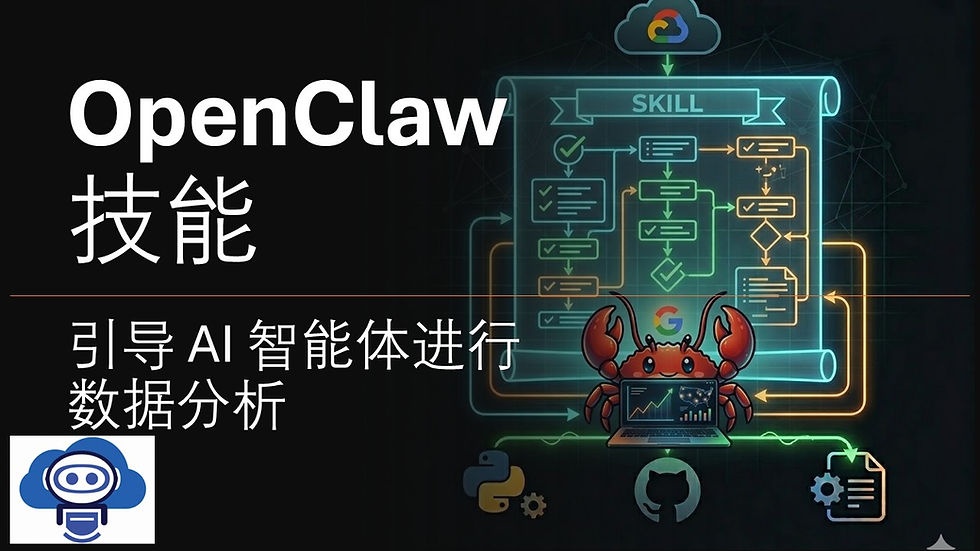
有了令牌和工具,最后我们需要教 OpenClaw 如何使用 Google Workspace CLI。我们将克隆仓库并将预定义的“技能”复制到 OpenClaw 的活跃技能文件夹中。
# 1. Navigate to the home directory and clone the CLI repository
cd ~
git clone https://github.com/googleworkspace/cli.git googleworkspace-cli

# 2. Ensure the OpenClaw skills directory exists
mkdir -p ~/.openclaw/skills

# 3. Copy all the Workspace skills into OpenClaw's system
cp -r ~/googleworkspace-cli/skills/gws-* ~/.openclaw/skills/

# 4. Verify the skills are recognized by OpenClaw
openclaw skills list

结语:测试您的 AI 智能体
执行完这些命令后,您的 OpenClaw 智能体现在拥有了管理您数字工作区的直接授权访问权限。启动 OpenClaw (openclaw),打开 Telegram,给您的智能体下达指令吧!

您可以要求智能体总结未读邮件、安排日历事件,或者将新生成的文档直接附加到 Google Classroom 的作业中。


留言