Gemini Gems: Build Your Own AI Teaching Assistant

Are you tired of answering the same five emails every semester? "How do I collect tweets?" "Where is the syllabus?" "What code editor should I use?"
Gemini Gems are custom AI agents in Google Gemini that can be grounded in your own documents and integrated directly with Google Workspace tools, such as Gmail.
If you try to use a standard AI chatbot to answer these questions, the results are often too generic to be useful. It doesn't know your specific lab requirements, and it definitely doesn't know your syllabus.
Today, I’m going to show you how to solve this by building a custom Gemini Gem. I call mine the "LBSocial TA," and it’s an AI agent grounded in my specific course materials that helps me draft accurate replies to student emails in seconds.
(Note: If you are a ChatGPT user, we previously covered how to Build an AI Teaching Assistant with Custom GPT. However, Gemini offers some unique integrations with Google Workspace that we will explore today.)
Why Gemini Gems are Better than Standard Chatbots
The challenge with generic LLMs (Large Language Models) is that they may hallucinate when they lack course-specific context. If a student asks, "How do I collect tweets?", ChatGPT might suggest a paid tool, whereas my class requires a specific free Python script.
By building a Gem, we can give the AI a specific "persona" and, most importantly, attach a Knowledge Database so it only answers based on our facts.
Step 1: Create Your Gem (Free vs. Paid)
Who this is for: University instructors, educators, and course designers who want AI support grounded in their own teaching materials.
Good news: You can now build custom Gems on the free Google Gemini plan.
Free Plan: You can build Gems and chat with them in the web interface. You can copy and paste student emails into the chat to generate a draft reply.
Paid Plan (Google One AI Premium/Workspace): The biggest advantage here is the Professor Email Workflow. You can access your Gem directly inside the Gmail sidebar. This means when a student emails you, you can open your "TA Gem" right next to the email, ask it to draft a reply based on your syllabus, and insert it without ever leaving your inbox.

To start building, go to the Gem Manager in Gemini and click "New Gem."
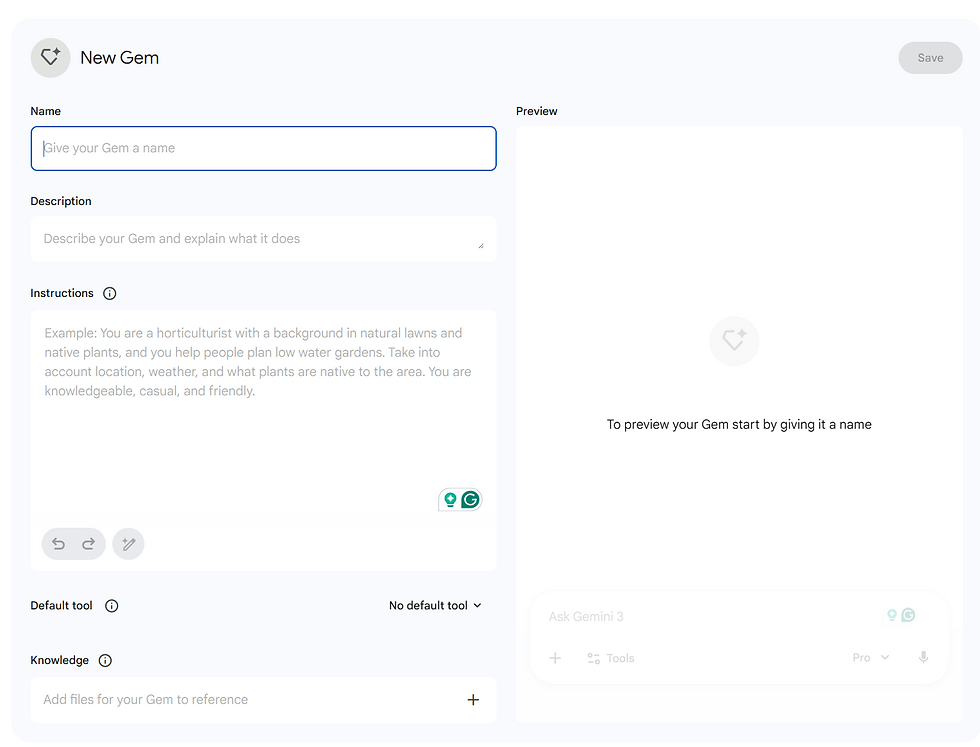
Step 2: The Instructions
This is where you define the behavior. You don't need code; you just need clear English. For my TA bot, I used:
"You are a professional teaching assistant helping educators and students understand Social Data Science. Always use the information from the attached Knowledge Database to answer questions."That bold part is critical—it prevents the AI from making things up.
Step 3: The Secret Sauce (NotebookLM)
This is the most important part of the tutorial. Unlike generic file uploads, Gemini lets you connect to a live NotebookLM database.
In our previous update, NotebookLM 2026 Update: Turn Your Documents into Slides, Videos, and a Knowledge Database, we demonstrated how to organize your entire course curriculum into a single notebook. By selecting that notebook here, we create a live link.

⚠️ Critical Privacy Warning: If you attach a NotebookLM source, you must ensure the notebook itself is shared with your users.
If you keep the notebook Private, students will get errors.
If you make it Public, students can click citations and read your source notes directly. This turns your bot into a gateway for your actual content!
Step 4: Sharing with Students
Once your Gem is created, you can generate a public link. Students do not need a paid subscription to chat with your bot; they can use their personal Google accounts.

Conclusion
Building a custom AI Teaching Assistant doesn't require coding skills—just good organization of your existing notes. By combining Gemini Gems with NotebookLM, you can save hours of email time and give your students better support.

Comments